
 Basiran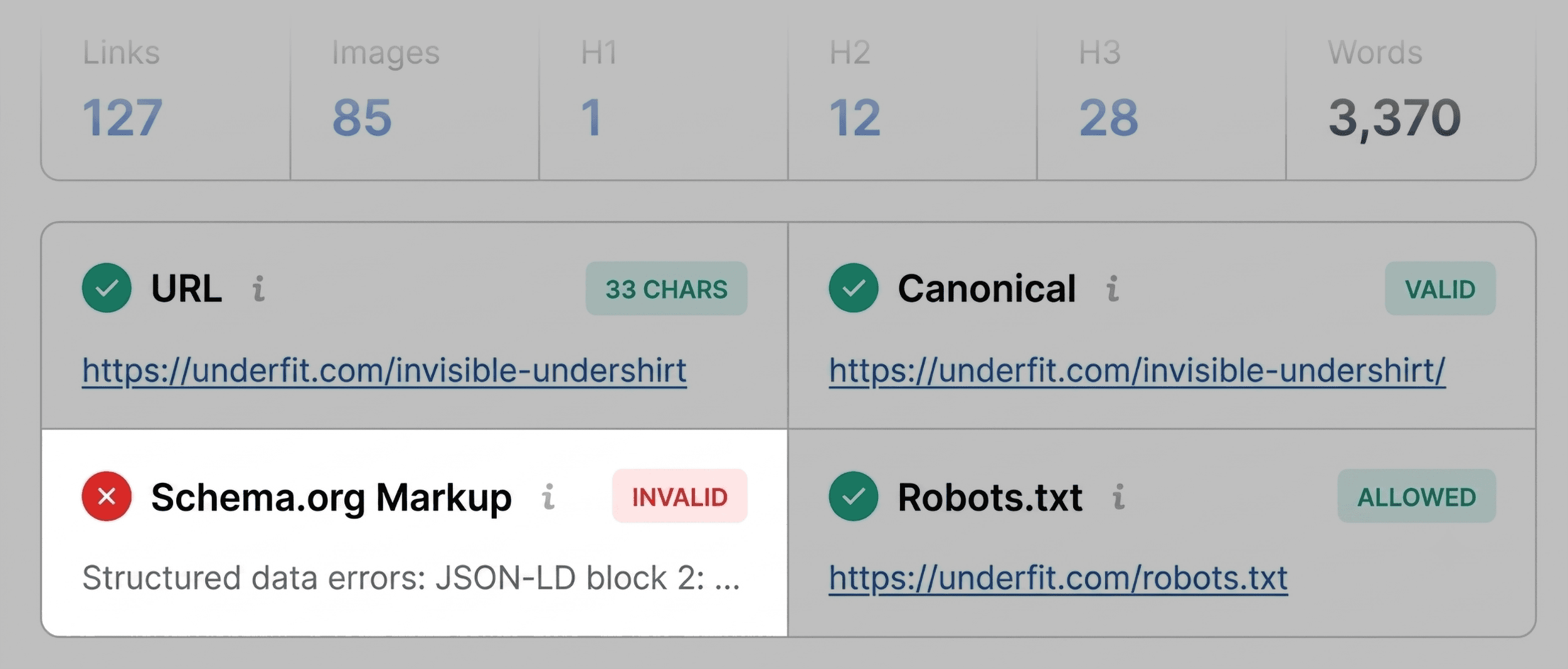
In the fast-paced world of digital marketing, waiting hours for a site-wide crawl to finish before diagnosing a single underperforming page is a luxury few professionals can afford. Whether you are dealing with a product page that has suddenly plummeted in the SERPs, a competitor’s content that is inexplicably outranking your authority pieces, or a client site suffering from a mysterious drop in conversions, speed is your greatest asset.
The ability to perform a surgical strike on a specific URL—identifying what is working and what is broken without ever leaving your browser—is exactly what makes SEOquake, the free Chrome extension from Semrush, an essential tool for SEOs, content managers, and web developers alike. This guide explores how to leverage SEOquake’s robust feature set to move from triage to actionable diagnosis in just three minutes.
What Is SEOquake?
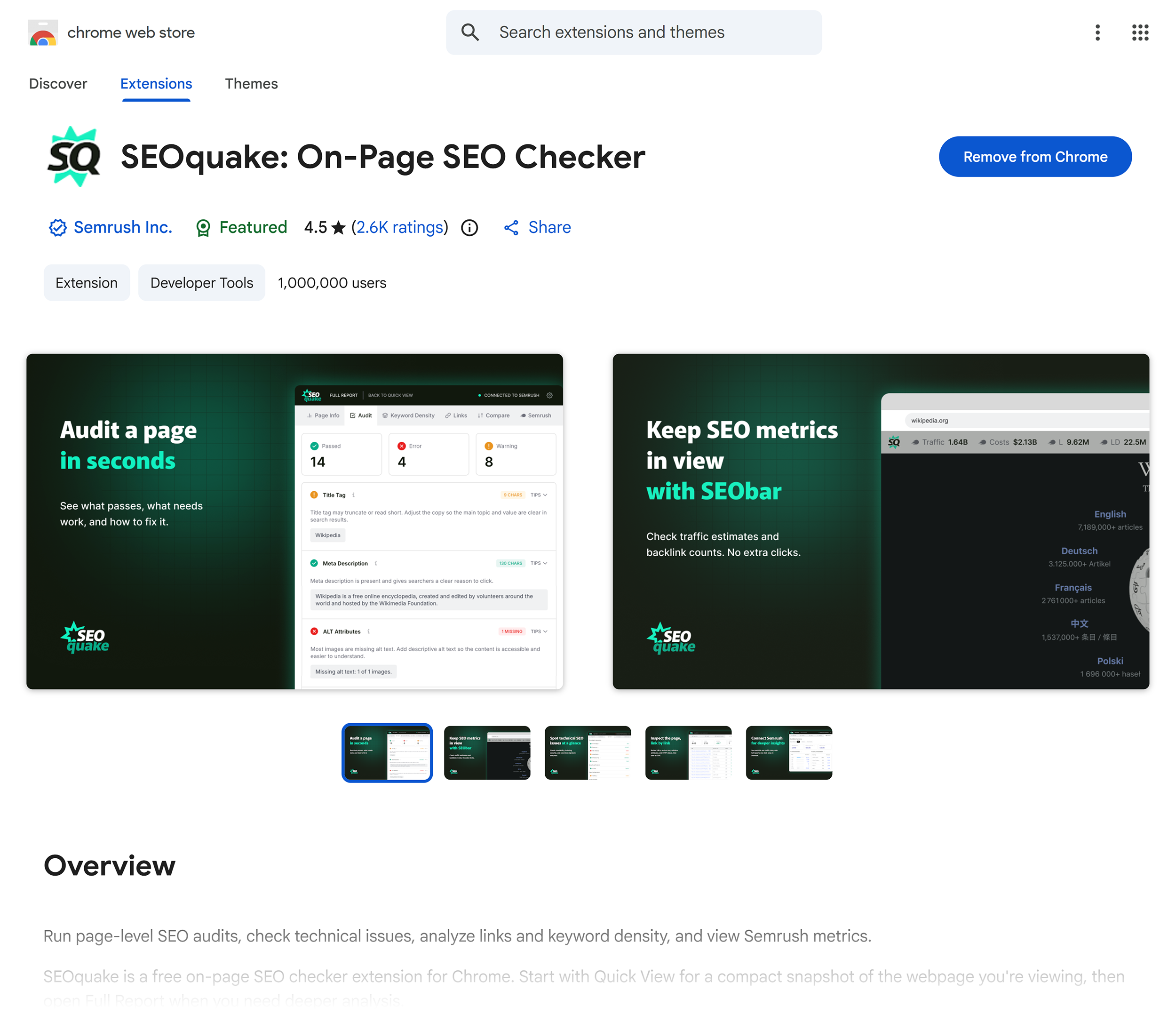
SEOquake is a high-performance SEO Chrome extension that provides an immediate, deep-dive analysis into any webpage. It acts as a bridge between the browser and the complex data sets required to understand technical signals, on-page SEO health, backlink architecture, and core Semrush metrics.
Once installed, the extension sits in your browser toolbar. A simple click transforms your view of any live page into a comprehensive SEO dashboard. Because it provides data in real-time, it removes the friction of switching between multiple platforms, allowing you to validate your assumptions about page performance instantly.
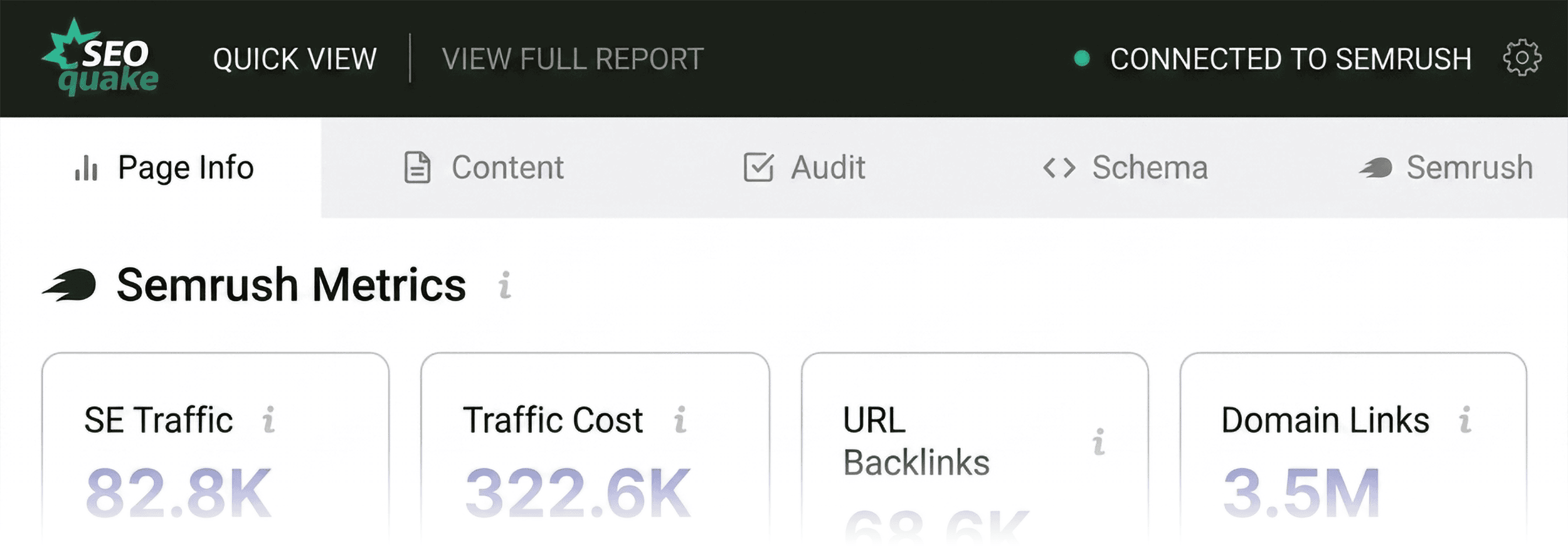
The extension offers two primary modes of audit:
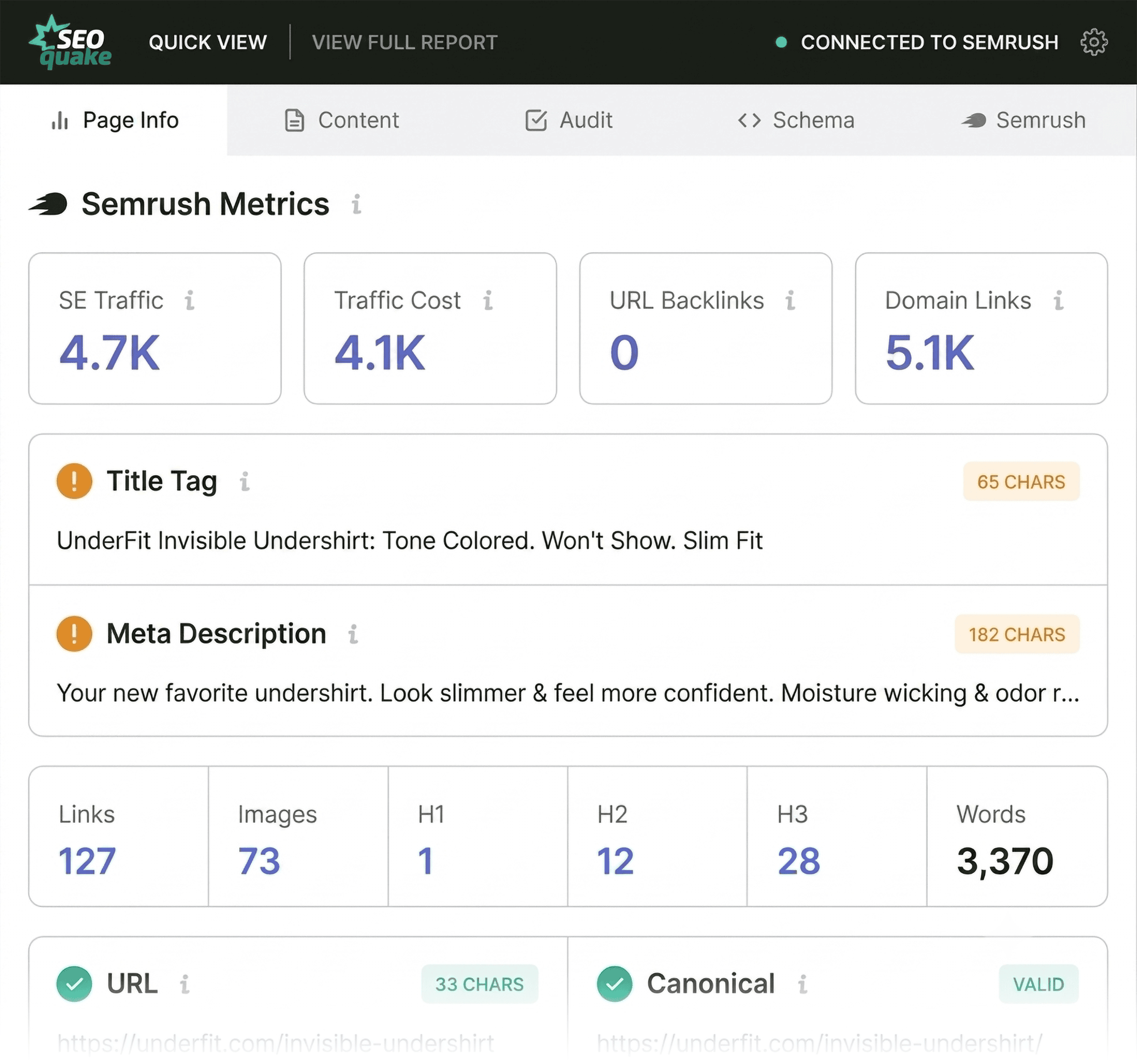
- The Quick View Pop-Up: Ideal for immediate, high-level triage.
- The Full Report: Designed for deep-dive diagnostics when specific issues require further investigation.
Throughout these reports, SEOquake utilizes a color-coded system that allows for instant visual prioritization:
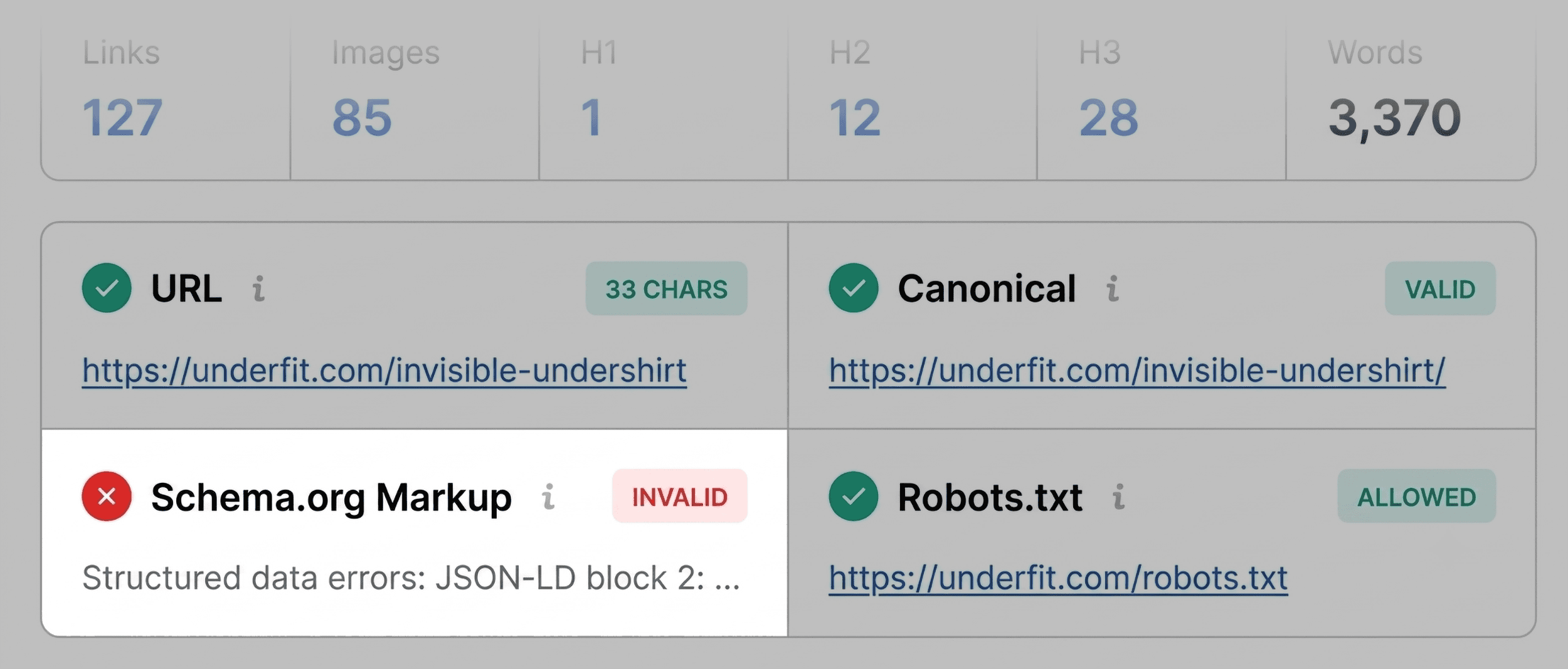
- Green: Indicates that the element is likely optimized correctly.
- Orange: Suggests a warning that requires a professional judgment call.
- Red: Signals a potential error or critical issue that needs immediate attention.
Chronology of a 3-Minute Audit: From Triage to Diagnosis
To maximize efficiency, a professional audit workflow should follow a strict timeline. By focusing on the most impactful data points first, you can isolate problems before they escalate.
Minute One: Triage with the Quick View Pop-Up
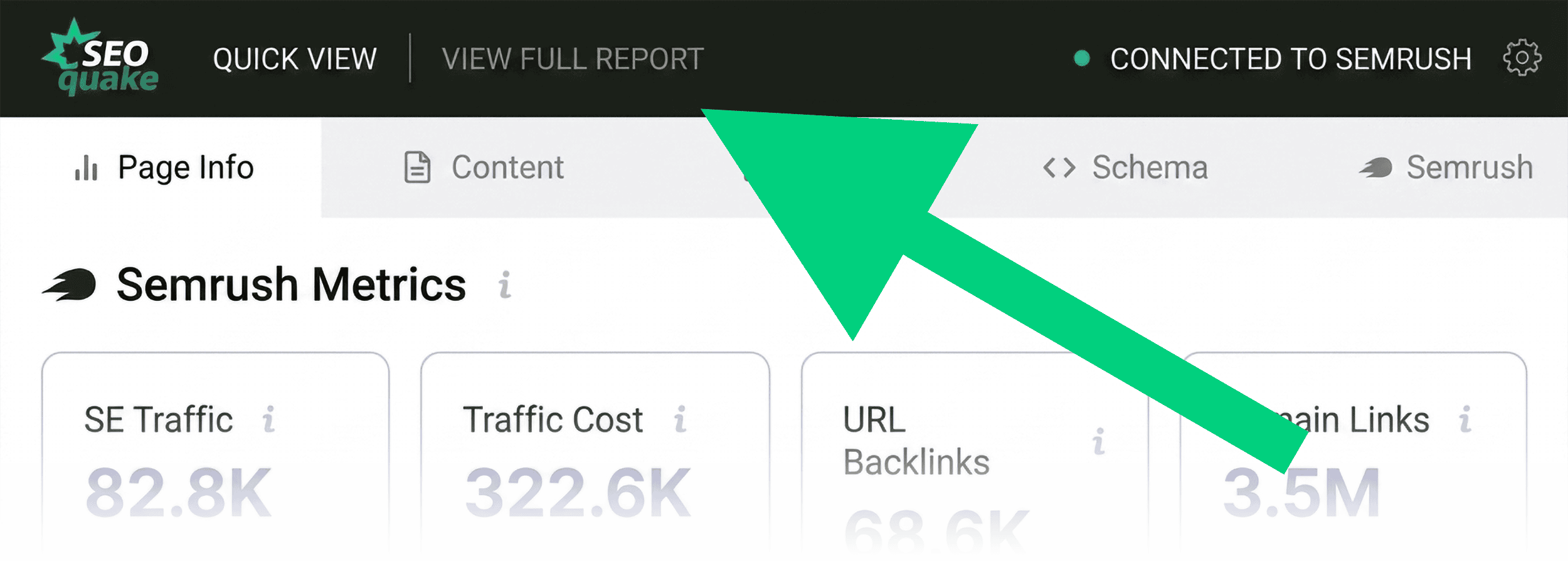
The goal of the first 60 seconds is simple: Is there something obviously broken? When you open the SEOquake pop-up, you are presented with five primary tabs. For a rapid assessment, focus exclusively on the Page Info, Audit, and Content tabs.
1. Page Info (20 seconds)
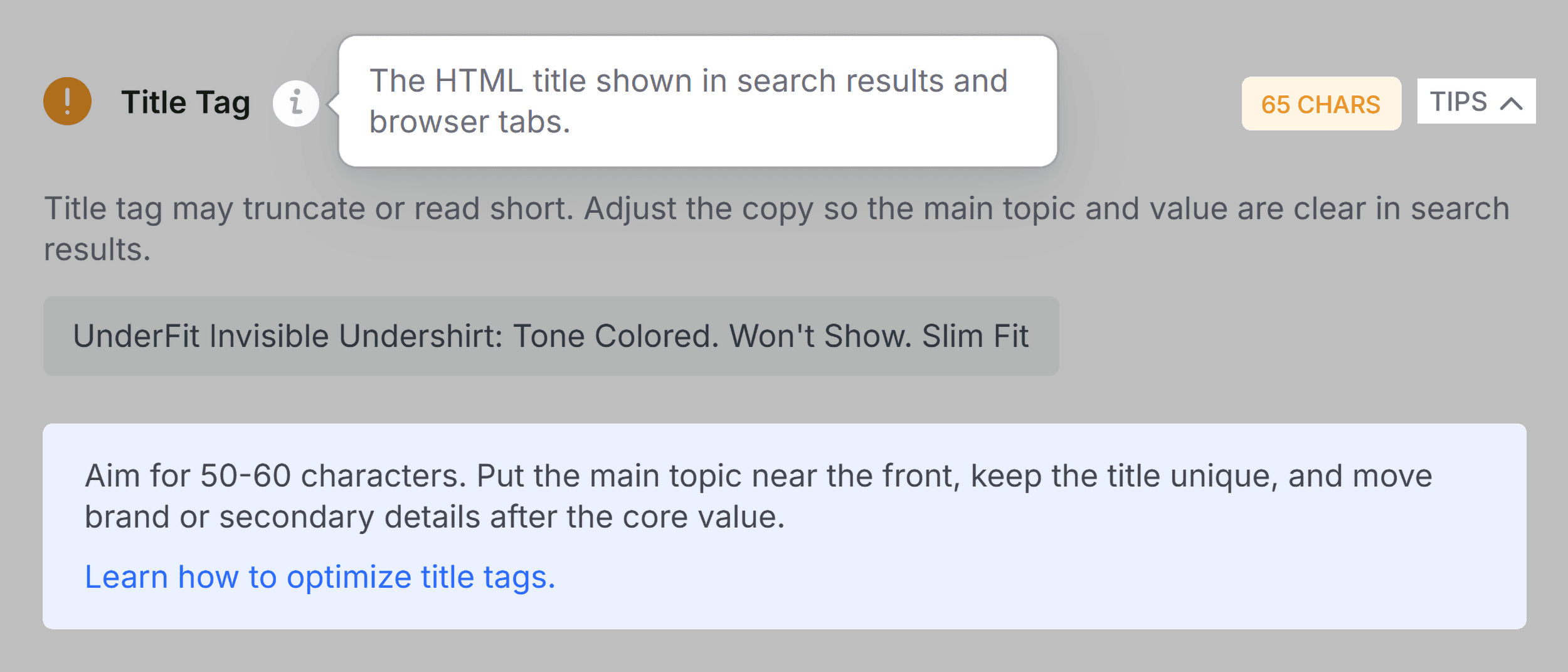
The Page Info tab provides the foundational SEO metrics. In your first sweep, check:

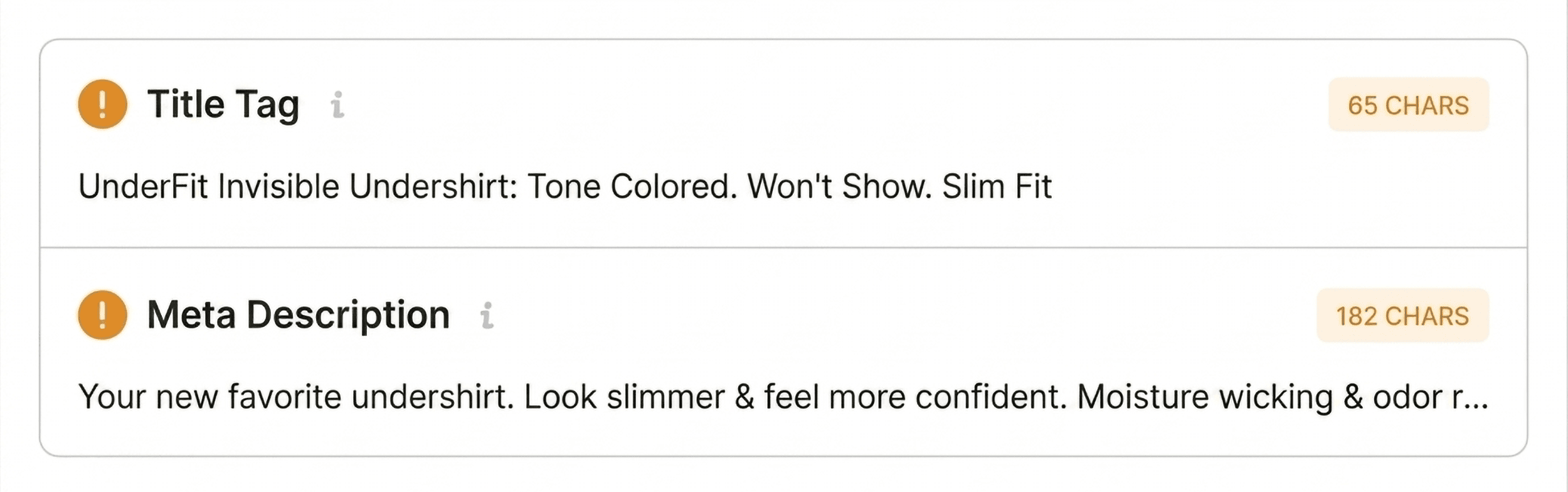
- Title and Meta Description: Are they present, and are they the correct length?
- Canonical Tags: Do they point to the correct URL, or are they causing self-cannibalization issues?
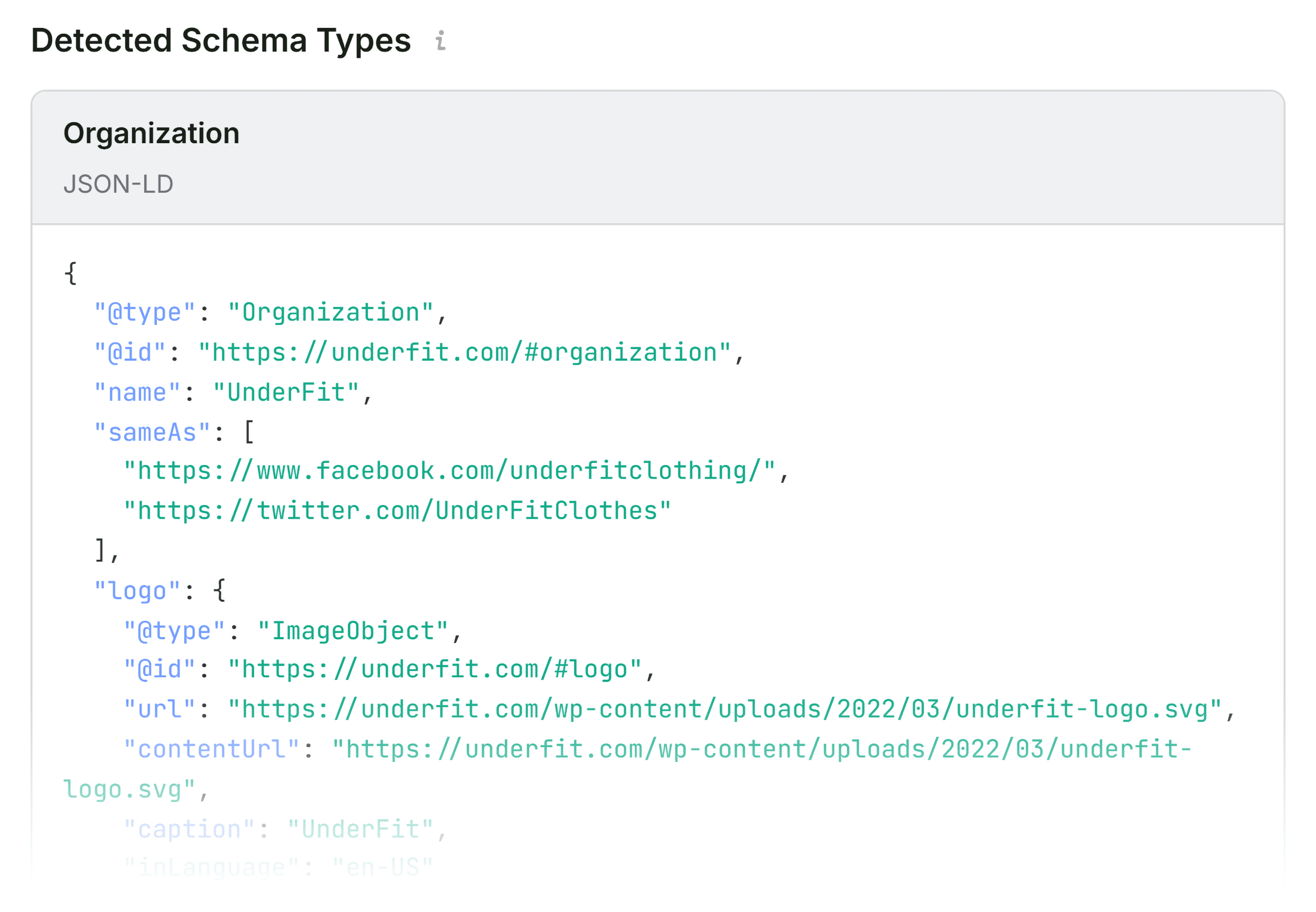
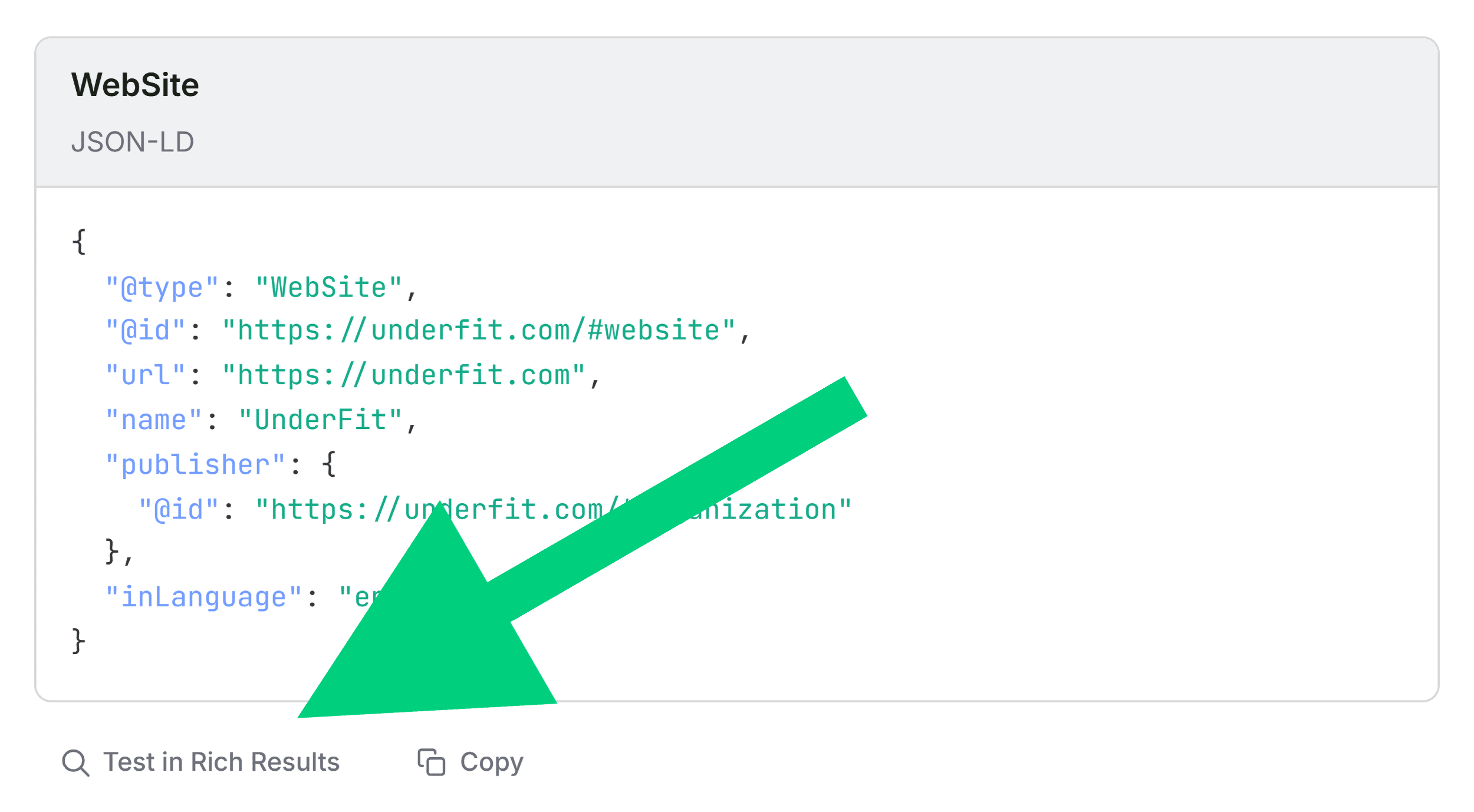
- Schema Markup: Is the page eligible for rich results? If this is flagged in red, it is a high-priority fix. Invalid product schema, for instance, can disqualify your page from displaying price, rating, or availability in search results.
- Meta Robots: Ensure the page is not accidentally set to
noindex.
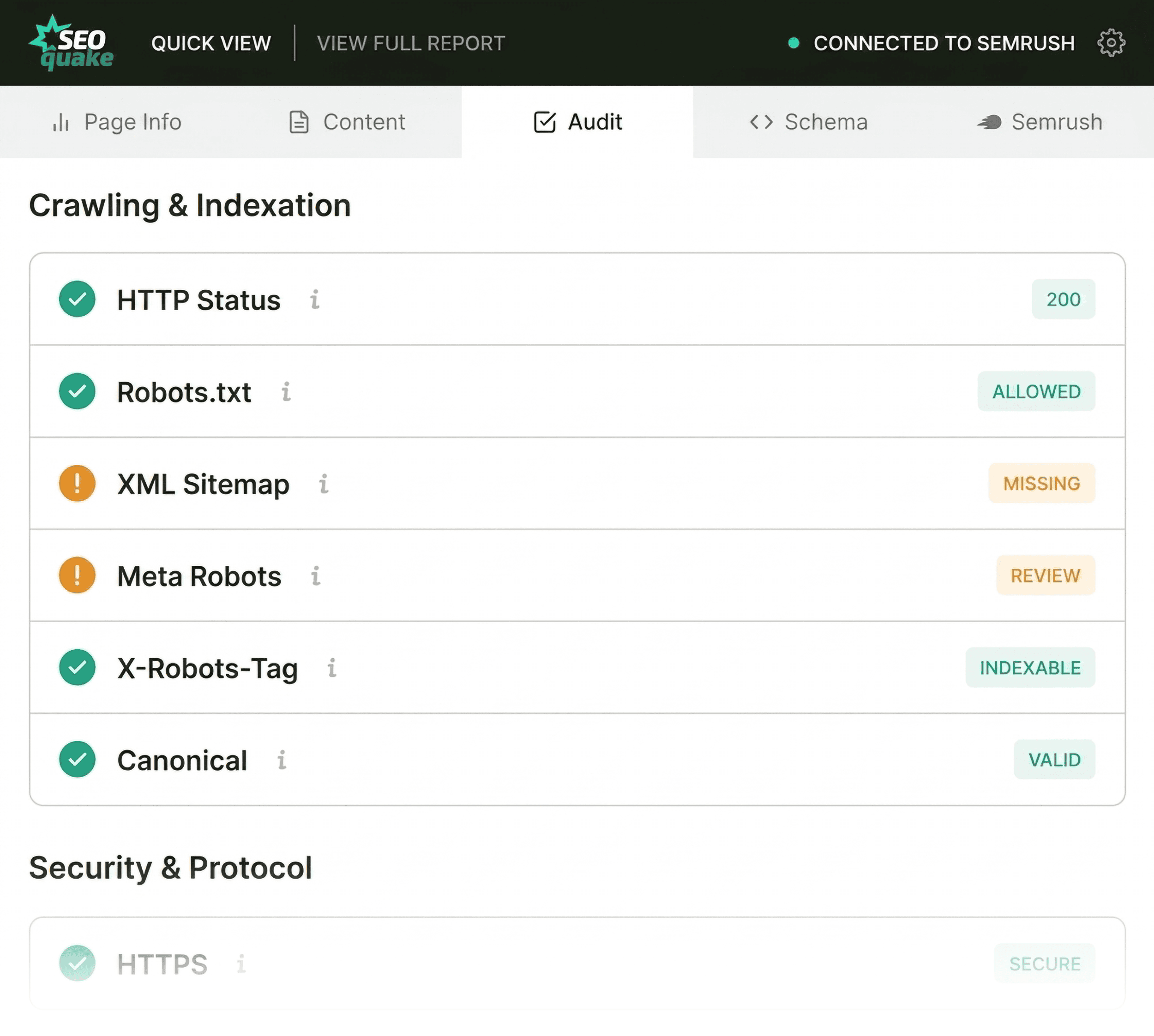
2. Audit Tab (20 seconds)
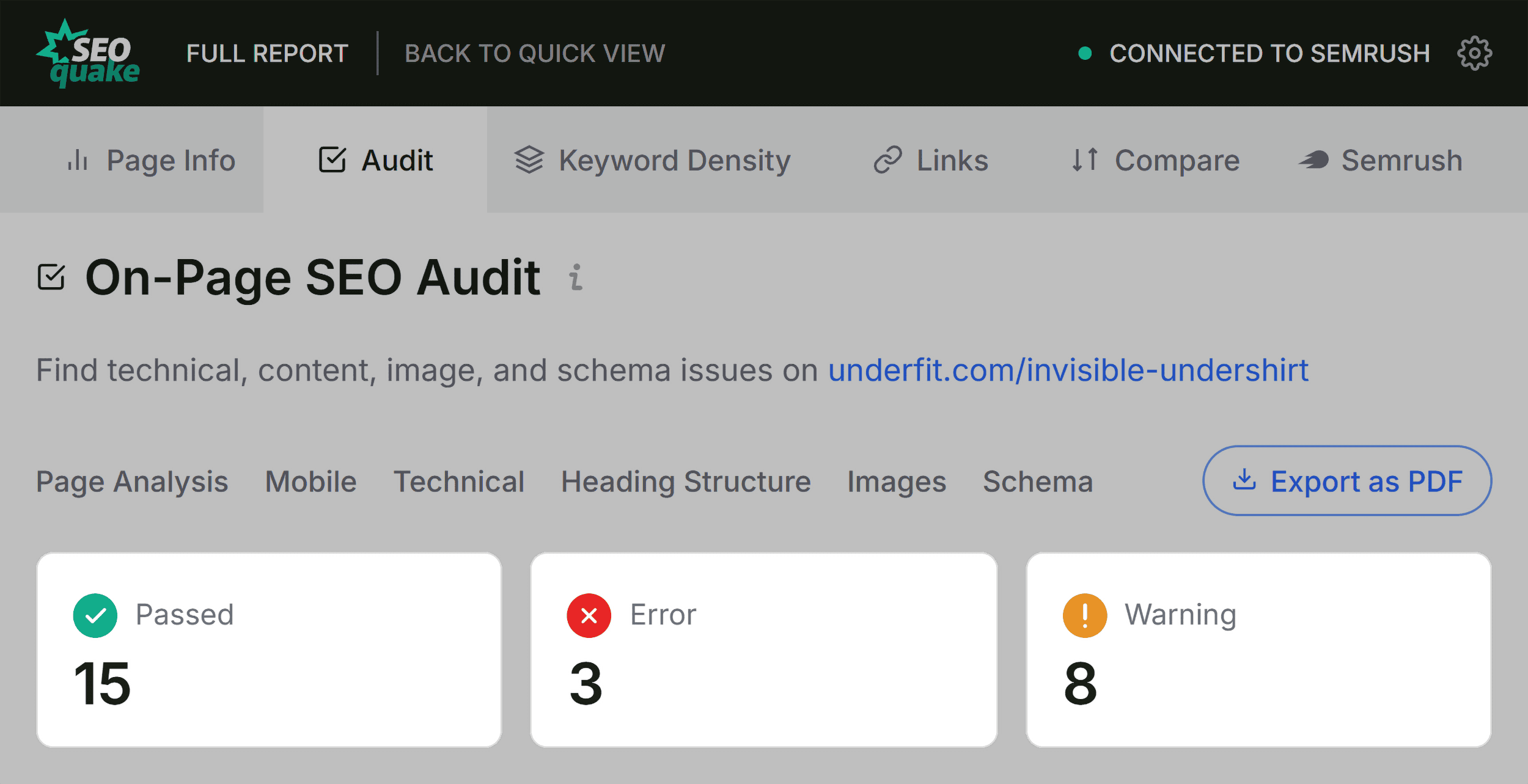
Next, jump to the Audit tab to check for technical roadblocks. While green results are ideal, do not ignore orange warnings. For example, a missing hreflang tag on an international site might be a minor warning for some, but a critical failure for others. Evaluate these flags based on the site’s unique goals.
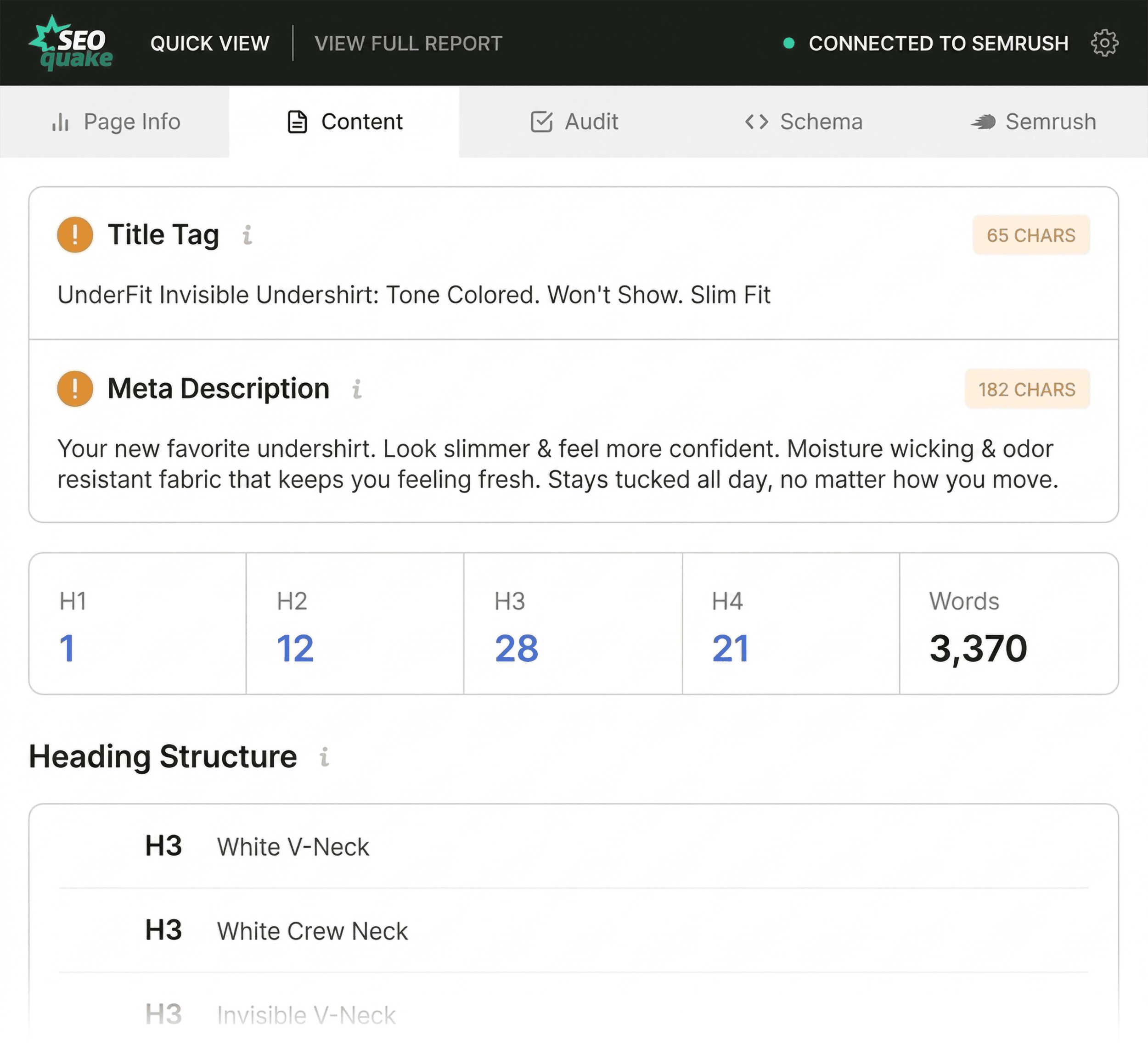
3. Content Tab (20 seconds)
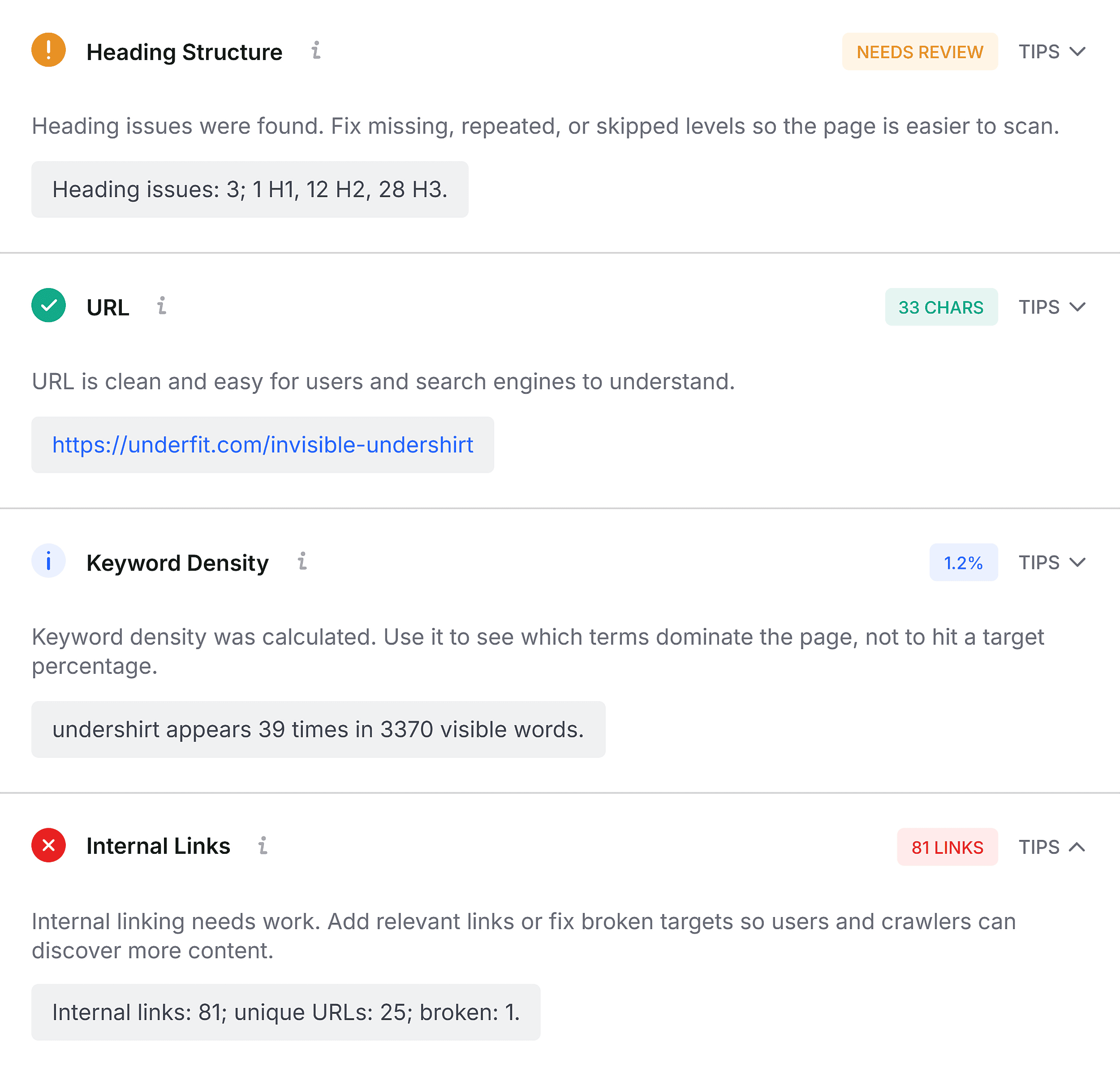
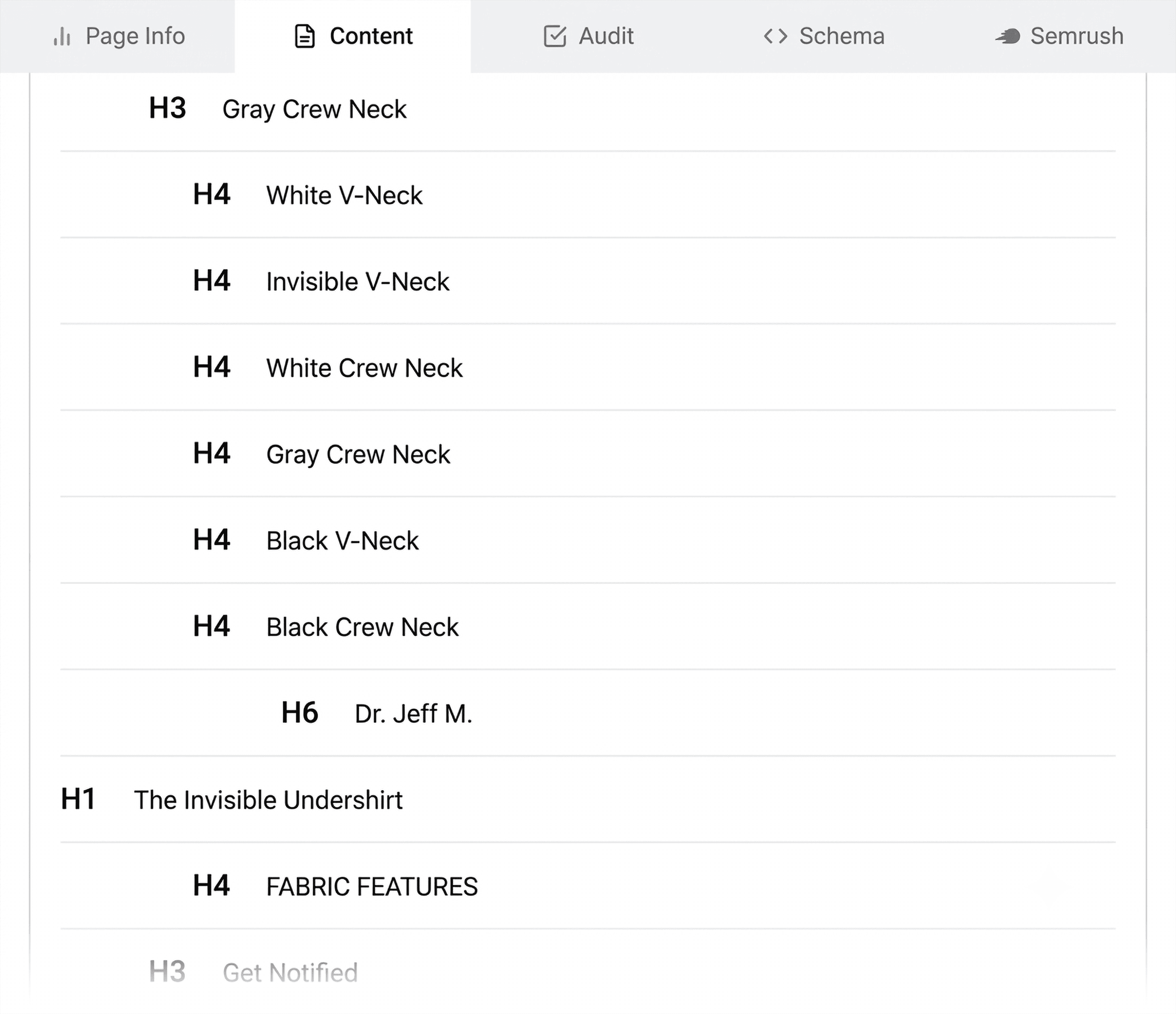
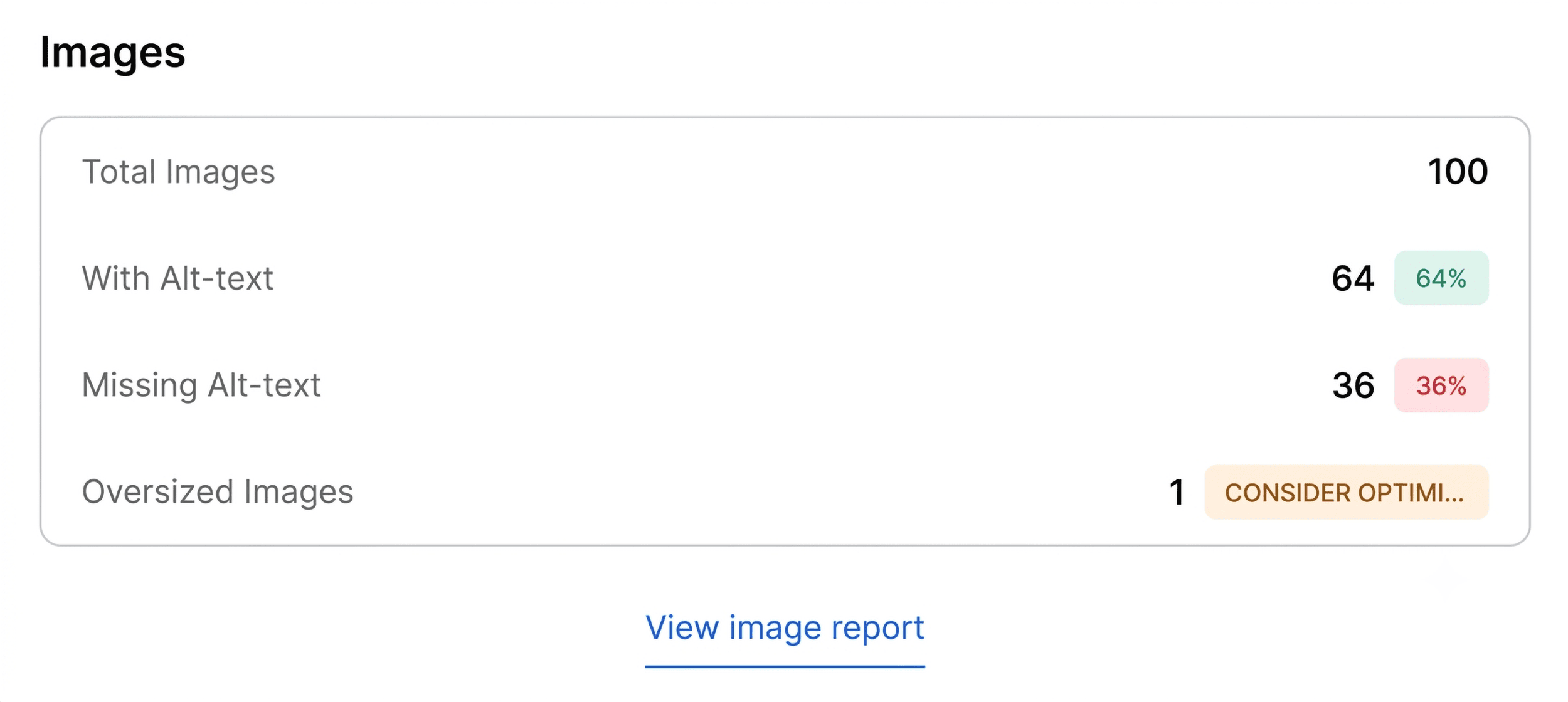
Structure is the primary focus here. Use this tab to verify that your H1, H2, and H3 tags follow a logical hierarchy. If the tool shows an H1 followed immediately by an H4, your page structure is confusing for search engines and screen readers alike. Additionally, check for missing alt text on images; search engines rely on these tags to understand visual content, and shoppers rely on them for accessibility.
Investigating the Evidence: Minutes 2 and 3
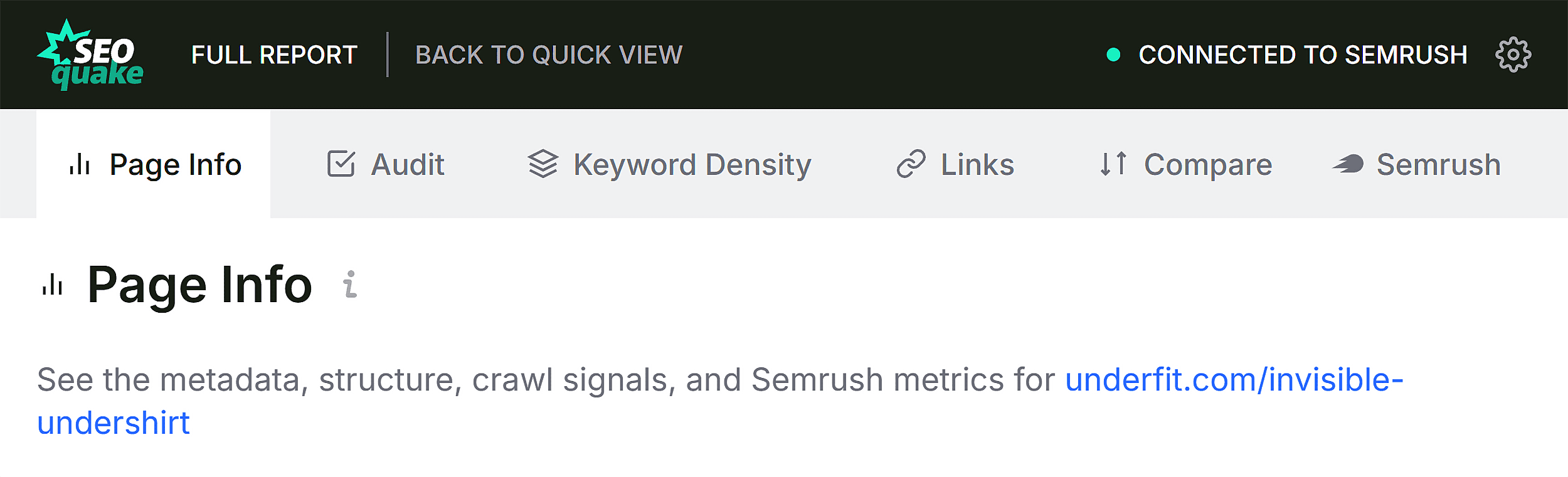
Once you have identified the flags, you must determine whether the problem is isolated to the page or symptomatic of a systemic site-wide failure. Click "View Full Report" to access the deeper analytical panels.
The Full Audit Panel
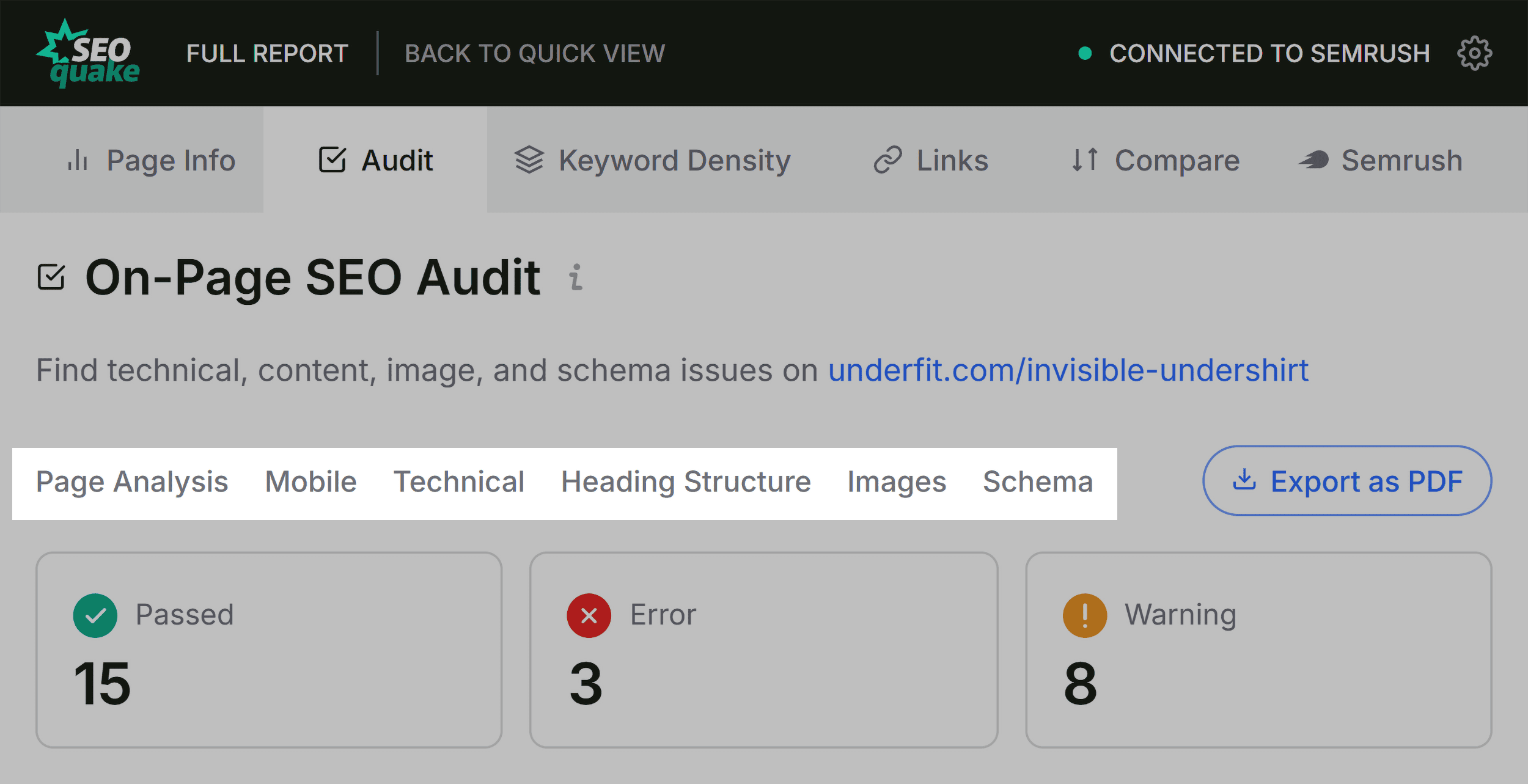
The Full Audit panel provides a granular look at crawlability and indexation. If you identified a schema error during the triage phase, this is where you can click "Test in Rich Results." This command triggers Google’s own testing tool, confirming if your code is truly broken or just improperly formatted.
Keyword Density and Topic Coverage
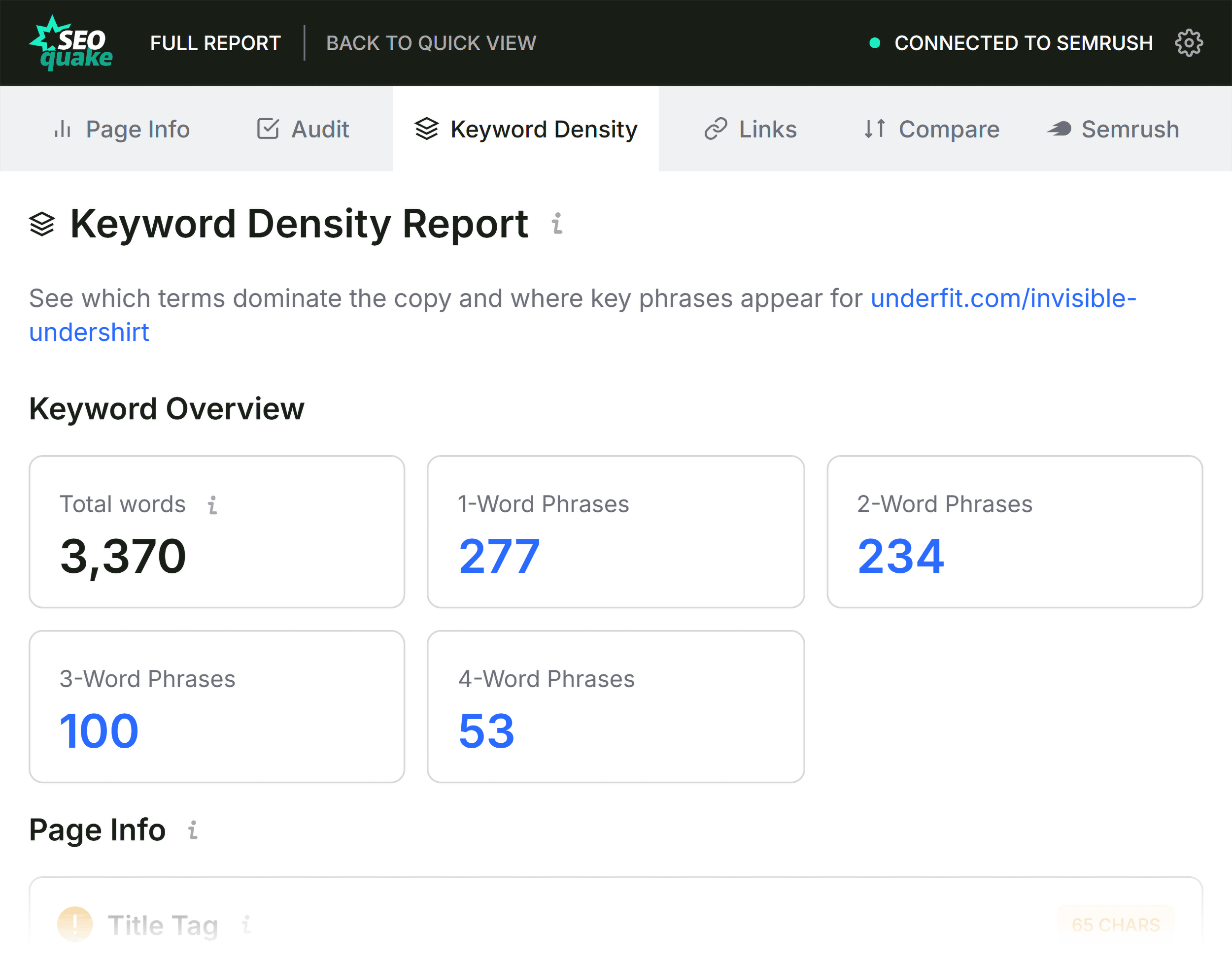
If a page is technically sound but still failing to rank, the problem is often semantic. The Keyword Density panel helps you spot topic coverage gaps. By scanning the "Keyword Cloud," you can see if your page is over-optimized for irrelevant terms or missing the core concepts expected by search algorithms.
Note: Be wary of "odd" phrases in the keyword cloud. These are often pulled from navigation menus, buttons, or JavaScript elements. Focus your analysis on the primary content terms to ensure the page’s thematic focus aligns with the target user intent.
Link Health
Broken internal links are silent killers of crawl budget and user experience. The Links panel allows you to export a CSV of all internal and external links. If you see a high volume of broken external links, it may be time to perform a site-wide link cleanup to prevent "link rot" from hurting your site’s authority.
Implications: The Decision-Making Process
By the end of your three-minute audit, you will have a clear list of actionable items. However, the most important part of this workflow is the decision to scale.
- Page-Level Fixes: If the issues (e.g., missing alt text, incorrect meta description, or poor H-tag hierarchy) are confined to the URL in question, execute the changes immediately.
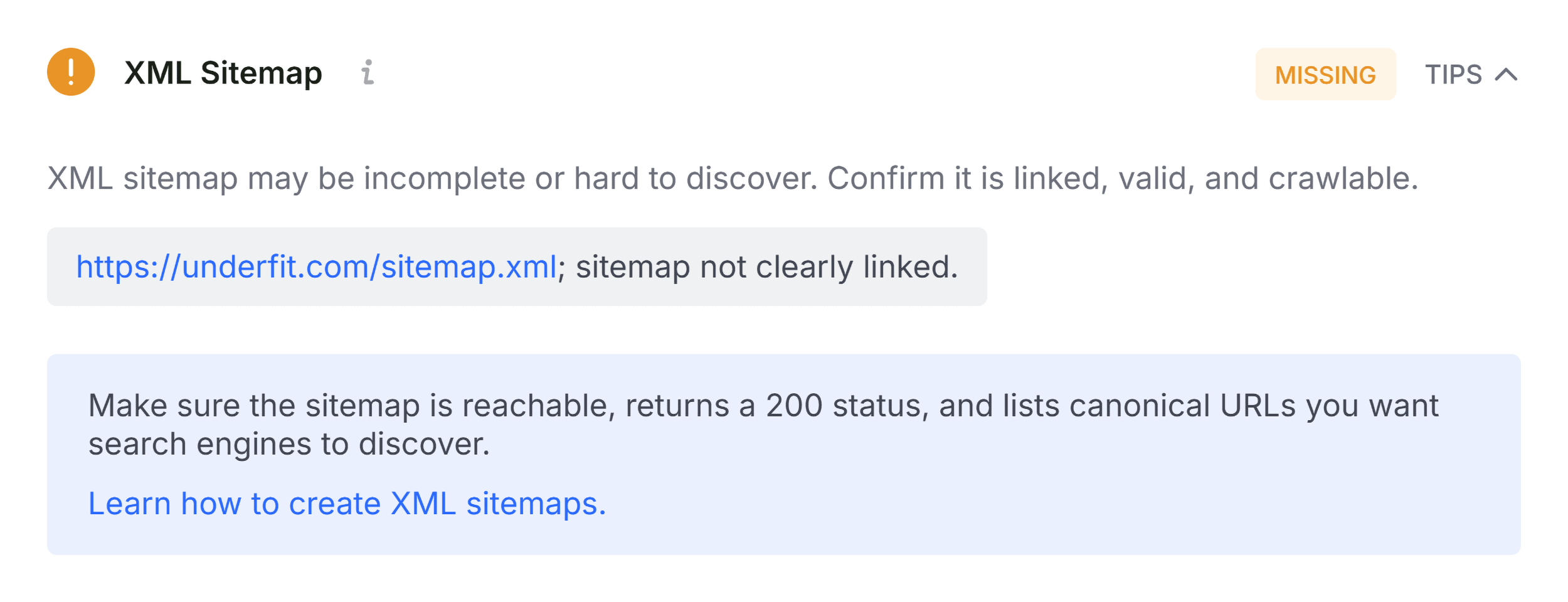
- Site-Wide Audits: If the issue is systemic—such as an improperly configured sitemap, widespread schema errors, or structural issues across all product templates—you have moved beyond the scope of a single-page audit.
In these cases, a full-site crawl is mandatory. Utilizing tools like the Semrush Site Audit allows you to scale your findings from one page to thousands, ensuring that the fixes you apply at the page level are reinforced across the entire domain.
Official Perspective on SEO Optimization
Semrush, the parent company behind SEOquake, emphasizes that while tools provide the data, the strategy must come from the SEO professional. The goal of using an extension like SEOquake is not to automate SEO, but to provide the speed necessary to make informed, human-led decisions.
As noted by industry experts, technical SEO is not a "set it and forget it" task. Even perfectly optimized sites can develop issues due to CMS updates, theme changes, or plugin conflicts. By incorporating a three-minute SEOquake audit into your daily routine—especially before launching new content or making site-wide changes—you create a safety net that protects your rankings from the volatility of technical drift.
Conclusion
The SEO landscape is becoming increasingly complex, but your diagnostic process doesn’t have to be. By mastering the SEOquake workflow—triaging with the Quick View, diagnosing with the Full Report, and knowing when to escalate to a full site audit—you can maintain peak performance across your digital assets.
The data is at your fingertips; the only question is whether you are prepared to act on it. Start by installing the extension, auditing your most important pages, and turning those "red" flags into "green" wins.


 Ammar Sabilarrohman
 Sagoh
Sagoh
 Raul Delapena Setiawan
 Reynand Wu


 Azzam Bilal Chamdy
 Ali Ikhwan