
 Reynand Wu
Microsoft’s Windows Insider Program has undergone a transformative evolution since its inception in 2014. Originally conceived as a modest technical preview for Windows 10, the program has grown into a sophisticated, multi-tiered testing ecosystem that serves as the heartbeat of Windows development. However, for the average user and the enterprise IT administrator alike, navigating the current landscape of channels, versions, and "feature flags" can feel like deciphering a complex corporate puzzle.
If you are looking to get a sneak peek at upcoming Windows 11 features, or if you are an IT professional tasked with validating software compatibility before a company-wide rollout, understanding the current structure of the Insider Program is no longer optional—it is essential.
The Evolution of the Insider Program: A Chronology
To understand why the program feels so complex today, one must look at its history.
- October 2014: Microsoft launches the Windows 10 Technical Preview. The goal was simple: bridge the gap between internal developers and the community to foster an agile feedback loop.
- 2015–2020: As Windows 10 matured, the program expanded to include different "Rings" (Fast, Slow, Release Preview). These designations allowed users to choose their tolerance for bugs in exchange for earlier access to code.
- 2021: With the launch of Windows 11, the "Ring" terminology was retired in favor of "Channels," a more granular approach to deployment.
- Early 2026: Microsoft initiated its most significant overhaul of the program to date. The company aimed to streamline the user experience, though many enthusiasts argue that the current iteration of "Channels" and "Versions" has added new layers of complexity.
Today, the program is exclusive to Windows 11. Support for Windows 10 has been formally phased out, signaling that the future of Microsoft’s OS ecosystem is firmly anchored in the Windows 11 architecture.
Understanding the Landscape: The Three Core Channels
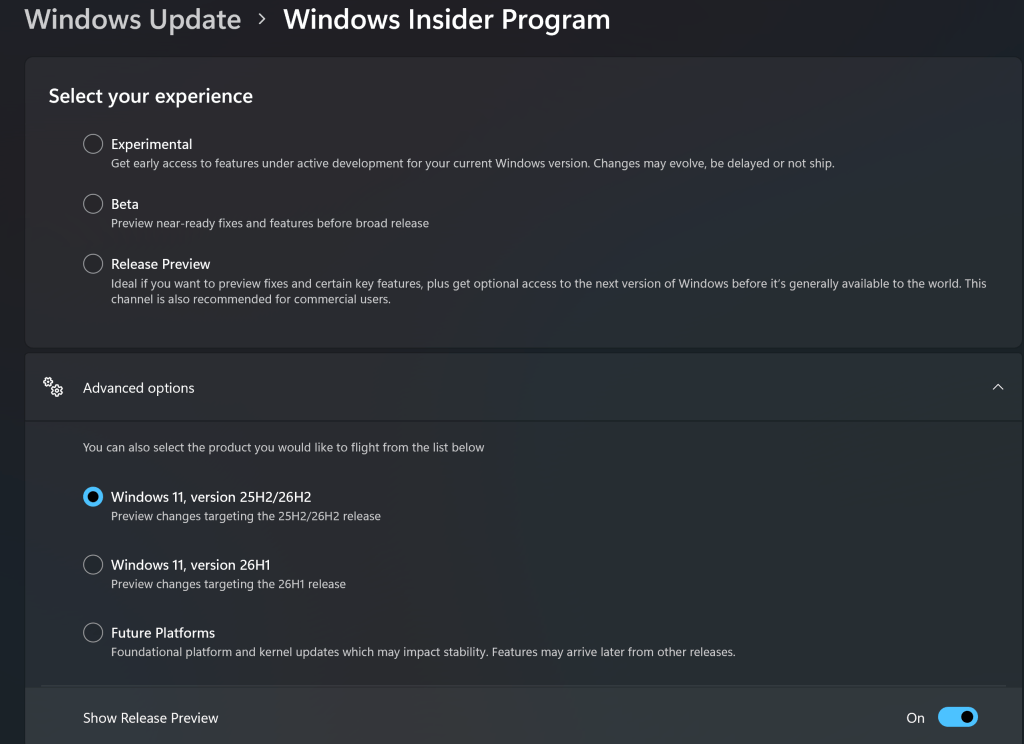
When you navigate to Settings > Windows Update > Windows Insider Program, you are presented with three distinct pathways. Choosing the right one depends entirely on your risk tolerance and your specific needs.
1. The Experimental Channel (Formerly Dev)
This is the "bleeding edge." It is designed for highly technical users who want to see the latest concepts, UI experiments, and platform changes.

- The Risk: High. Builds in this channel are often unstable, prone to crashes, and may contain features that never actually make it into the final version of Windows.
- Best For: Enthusiasts, developers, and those with a dedicated, non-critical machine.
2. The Beta Channel
This is the "Goldilocks" zone. Builds here are much more stable than the Experimental channel. They represent features that are closer to being finalized.
- The Benefit: Microsoft has recently removed "Controlled Feature Rollouts" (CFRs) from this channel, meaning that if a feature is documented in the release notes, you are guaranteed to receive it.
- Best For: Early adopters who want to preview features without sacrificing daily system stability.
3. The Release Preview Channel
This is the safest environment. You receive near-final builds of updates shortly before they are released to the general public.
- The Benefit: It provides the opportunity to verify that your critical applications will work with upcoming patches before they are pushed to your production environment.
- Best For: Home users who want to avoid nasty surprises and IT admins conducting final verification tests.
Critical Infrastructure: Setting Up Your Environment
Before you click "Join," there is a golden rule in the world of software testing: Never install Insider builds on your primary computer.
Preview software, by its very nature, is incomplete. It can lead to data loss, system instability, or hardware driver conflicts. If you intend to test these builds, follow these industry-standard recommendations:
- Use Secondary Hardware: Dedicate a laptop or desktop that is not used for critical work.
- Virtualization: Run Windows 11 inside a virtual machine (using tools like Hyper-V, VMware, or VirtualBox). This allows you to snapshot your system state before an update, meaning you can "roll back" to a working version in seconds if an update causes a catastrophic failure.
- Data Redundancy: Always maintain a full, offline backup of any files stored on your test device.
Configuring Your PC
To join, sign up via the official Windows Insider portal. Once registered, you must link your Microsoft account in the Windows Settings app. A critical, often overlooked step is enabling Optional Diagnostic Data. Without this, Microsoft cannot receive the telemetry data required to fix the bugs you encounter. You can toggle this under Settings > Privacy & security > Diagnostics & feedback.
The "Feature Flag" Revolution
One of the most confusing aspects of the modern Insider Program is the use of Controlled Feature Rollouts (CFRs). Historically, Microsoft would enable a feature for only 10% of users in a channel to monitor performance, leaving the other 90% wondering why their OS looked different.
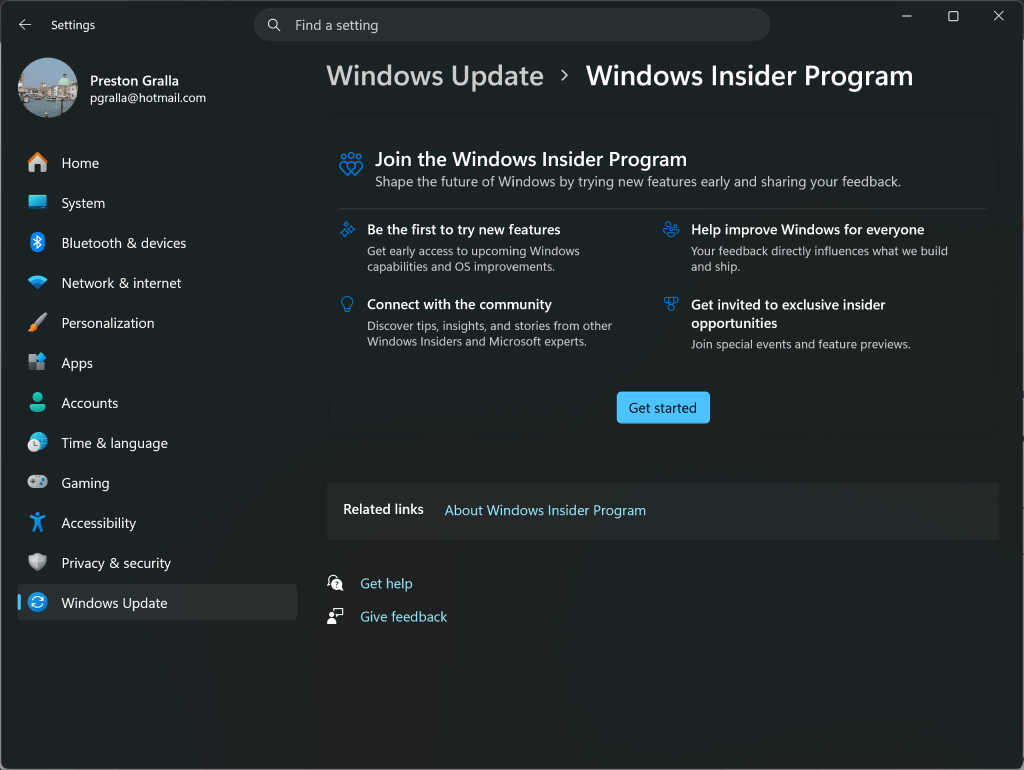
In the Experimental channel, Microsoft has introduced Feature Flags. This is a powerful, albeit manual, control mechanism. By navigating to Settings > Windows Update > Windows Insider Program > Feature flags, you can now manually toggle specific features on or off. This grants you the agency to bypass the "wait-and-see" approach of traditional rollouts. However, be warned: not every feature is gated by a flag. Fundamental system architectural changes remain mandatory for all participants in a given build.
Implications for IT Administrators
For businesses, the stakes are significantly higher. A broken update can paralyze an entire department. The Windows Insider Program for Business is designed specifically to mitigate this risk.
Enterprise-Grade Management
Unlike the individual program, the Business version allows IT admins to:
- Centralized Deployment: Use Microsoft Intune, Group Policy, or Microsoft Endpoint Configuration Manager (MECM) to push specific Insider builds to groups of test devices.
- Entra ID Integration: Sync test devices with your corporate domain to ensure that security policies and access controls remain intact during the testing phase.
- Feedback Loops: IT admins gain access to dedicated support channels and the Windows Insider Program Tech Community forum, a hub where professionals discuss real-world deployment challenges and share workaround scripts for common bugs.
Strategic Recommendations for IT
If you are managing an organization, treat the Insider Program as part of your Quality Assurance (QA) lifecycle. We recommend a "Phased Deployment" strategy:
- Validation Phase: Enroll a small group of IT-savvy "power users" in the Release Preview channel.
- Analysis Phase: Use the data collected from these devices to identify potential conflicts with custom enterprise software or security drivers.
- Deployment Phase: Once the build has been vetted, only then should you schedule the rollout for the wider workforce.
Official Responses and Future Outlook
Microsoft has consistently maintained that the Insider Program is not merely a "beta testing" service, but a collaborative platform. In recent communications, Microsoft leadership noted that the feedback provided through the Feedback Hub directly influences the prioritization of bug fixes. When thousands of users report a crash in a specific build, the engineering teams adjust their sprint goals to address those specific issues before the code hits the "General Availability" (GA) branch.
While some users remain critical of the complexity introduced by the 2026 overhaul, the shift towards a more transparent, feature-flag-based system indicates that Microsoft is listening. The company is moving toward a future where the user has more control over their OS environment than ever before.
Conclusion: Is the Insider Program Right for You?
The Windows Insider Program is a double-edged sword. It offers the thrill of being at the forefront of technological innovation and the professional advantage of preparing for the future of the Windows ecosystem. However, it demands patience, a degree of technical proficiency, and a willingness to troubleshoot.
If you value a "set-it-and-forget-it" computing experience, stay on the public, stable version of Windows 11. But if you are a tinkerer, a developer, or a forward-thinking IT administrator, the Insider Program is an indispensable tool. By following the best practices outlined in this guide—specifically the use of virtual machines and a clear understanding of channel risks—you can leverage the program to master the future of Windows while keeping your core systems safe and secure.
The future is being built today, one build at a time. The question is: are you ready to test it?

 Basiran
 Siti Muinah

 Neng Nana
 Nana Muazin
 Jia Lissa
 Laily UPN
 Asep Darmawan